 AI Tools
 Health
 Math
Math Everyday Life
 Finance
 Physics
 Chemistry
 Statistics
 Construction
 Pets
Pets Time & Date
 Conversion Calculator
 Sign In
Pages
Category
Follow Us On:
Pages
Category
Follow Us On:
Icons form the smallest part of the user interface. However, they have an important impact on the appearance of the website or application. Icon blurriness can negatively affect the visual appearance of your design. This makes the entire design look unprofessional. Most of the time, it happens because of the inappropriate resizing and resolution of an icon. Because the content is viewed on different devices, including cell phones, tablets, and desktops, choosing the right export settings is essential to keep the icons sharp and crisp.
It is for this reason that having the right exporting settings becomes important. An icon that is exported in the correct way will be crisp and legible no matter what the screen size is. This also contributes to creating a good user experience and giving the interface a professional look. This blog post will explain what pixel density means and how to export icon assets that stay sharp everywhere.
Understanding Pixel Density:
Every digital screen is made up of a grid of tiny pixels. The number of pixels packed into one inch of a screen is called pixel density. It is usually measured in pixels per inch. A laptop screen may have around 100 to 110 pixels per inch. While the latest mobile phone can have more than 400 pixels per inch. This is why the same icon can look sharp on one device but blurry on another.
If the image is created for a low pixel density screen, it may lack detail and thus may not appear to be clear on a high pixel density screen. It is useful to have an idea of the density of the device you are creating icons for before you export the icons. This can be done easily with the help of an online PPI calculator, where you can input screen size and resolution to instantly calculate the exact number of pixels per inch.
What are 1x 2x, and 3x Icon Sizes?
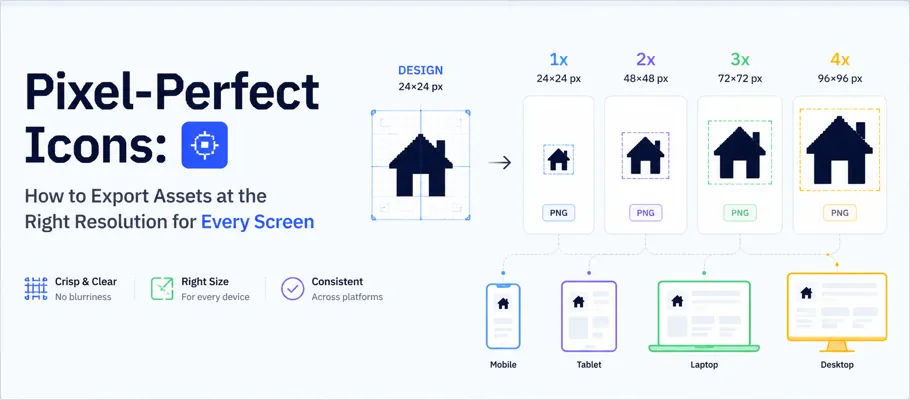
Most designers use a few standard icon sizes instead of creating a different size for every screen to make things easier. The most common sizes are 1x for standard screens, 2x for high-resolution screens, and 3x for very high-resolution screens that are often found on the latest phones.
Suppose that an icon is 24 × 24 pixels at 1x. It becomes 48 × 48 pixels at 2x and 72 × 72 pixels at 3x. The icon looks the same size on the screen. But it contains more pixel detail. Devices automatically choose the correct version when all sizes are available. If the larger versions are missing. The device stretches the smaller icon, which often makes it look blurry on high-resolution screens.
Picking the Right Icons Before Export:
You do not always need to create custom icons for every project. Many graphic designers use existing icons. The reason is that it saves time and keeps the design consistent. The important thing is to choose icons that are suitable for export in different sizes without losing quality. A free icons website to find high-quality icons in matching styles. This helps your website or app look more consistent.
Must check the file format before downloading any icon. A small .png icon could not be seen on a high-resolution display. Earlier, the icons were traditionally saved as GIFs. But it is best to select icon sets that contain scalable images like SVGs so that they can be resized during export without losing clarity and sharpness on any device.
Export Sizes for Different Platforms:
Different platforms use different icon sizes. So it is helpful for you to know the basic requirements before exporting your icons.
Which File Type Is Best for Icons? Raster or Vector:
You do not need to export every icon in multiple sizes. Vector graphics (SVG) are scalable and retain resolution at any size. This ensures an SVG appears crisp and clear on various screens without losing its sharpness. SVG format is considered the best option because you do not need to create separate files for different screen densities.
Raster formats like PNG are still useful in some cases. These formats can be used for icons that have complex effects or when a platform calls for a raster file. It is good to keep the original icon as a vector file and only export the PNG version when necessary. Instead of creating your own icons, downloading free icons in bulk saves time and effort.
Naming and Organizing Exported Files:
Using clear file names makes it easy to organize and find your icons. Especially when you have many icons in different sizes. Here are some simple naming ideas:
Final Thoughts:
It is not a matter of getting the right icon resolution to make the icons look perfect on one screen. It is the matter of ensuring their clarity and sharpness on every device. You can either make your own icons or download them from a free icons website.
Find out the number of pixels available on the devices you are designing for. Export Icons in the proper sizes where possible and use vector formats like SVG. Use clear and consistent file names to organize your icons efficiently.
By following these simple steps, you can ensure your icons are crisp and legible on various screen resolutions, and your website or app appears more professional and elegant.

Last updated: July 2, 2026
Aaron Lewis is an accomplished writer; He has done MS-Business Management and is a professional Research analyst and writer. He is too aggressive to write articles regarding Digital Marketing, Business, Health, and Mathematics. He is ready every time to collect information that can convey her experience on related topics.


Recent Posts
Links
Home Conversion Calculator About Calculator Online Blog Hire Us Knowledge Base Sitemap Sitemap TwoEmail us at
Contact Us© Copyrights 2026 by Calculator-Online.net
How was your experience today?
Not now
Awesome! Would you mind sharing that on Trustpilot?
Your review helps others find a tool that actually works.
Write a Review on TrustpilotNot now
Sorry to hear that
Tell us what went wrong — we read every message.
Not now
Thanks for your feedback!
We'll use it to make things better.